Email creation and templates

Same design.
Different content when it matters.

Work directly in MJML or HTML, or turn your design into a template your team can fill in. Add contact details and simple rules when different readers should see different content.
Take a tour See pricing
app.sonarsend.com/t/kestrel-supply/emails/fieldnotes-48/content
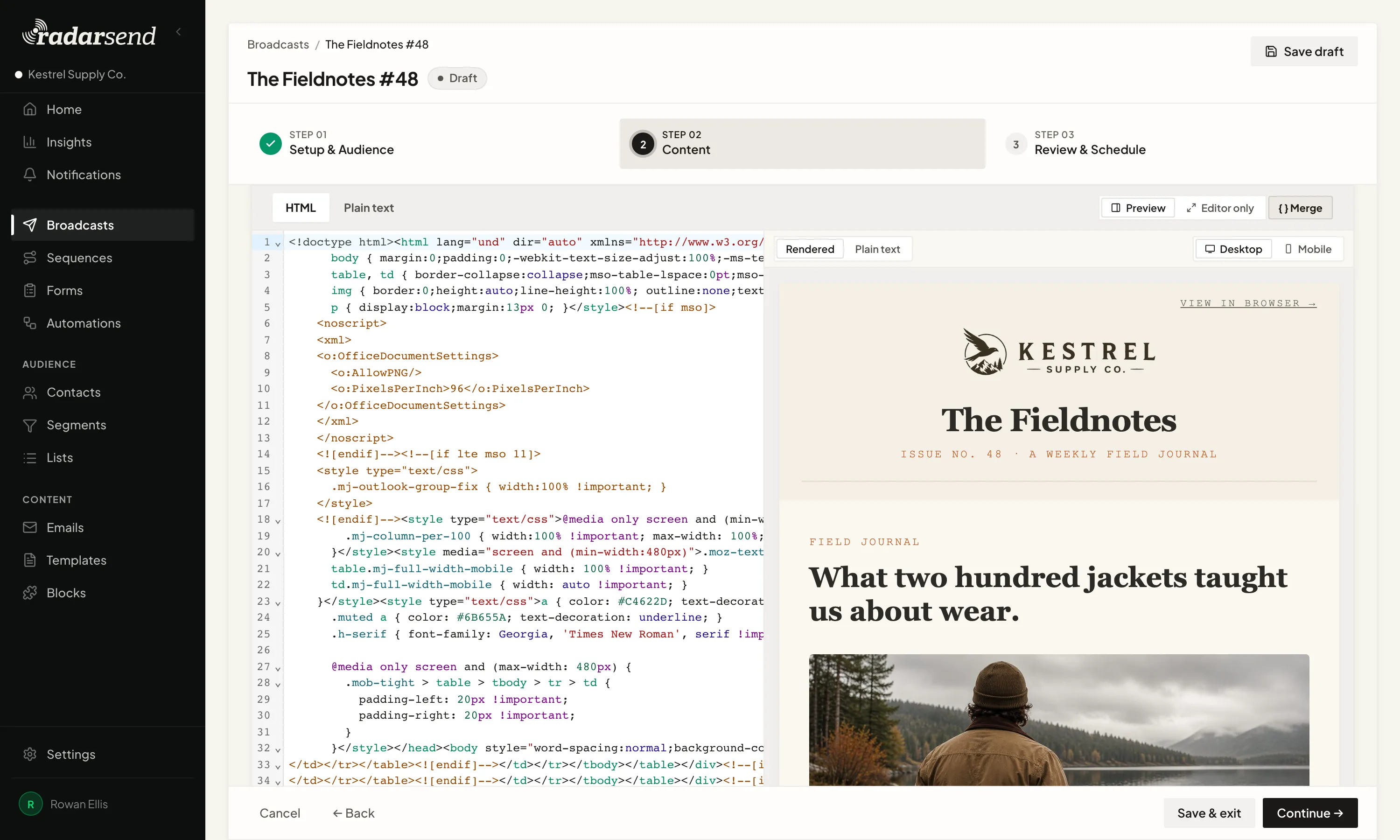
The Template workspace: the Masthead section's fields with character counts and guidance on the left, the rendered Kestrel Fieldnotes email on the right.

You control the design. RadarSend handles the per-contact changes.

Choose how you work

Three ways to build the email.

Fill in guided fields built for your design. The layout is protected.
app.sonarsend.com/t/kestrel-supply/emails/fieldnotes-48/content
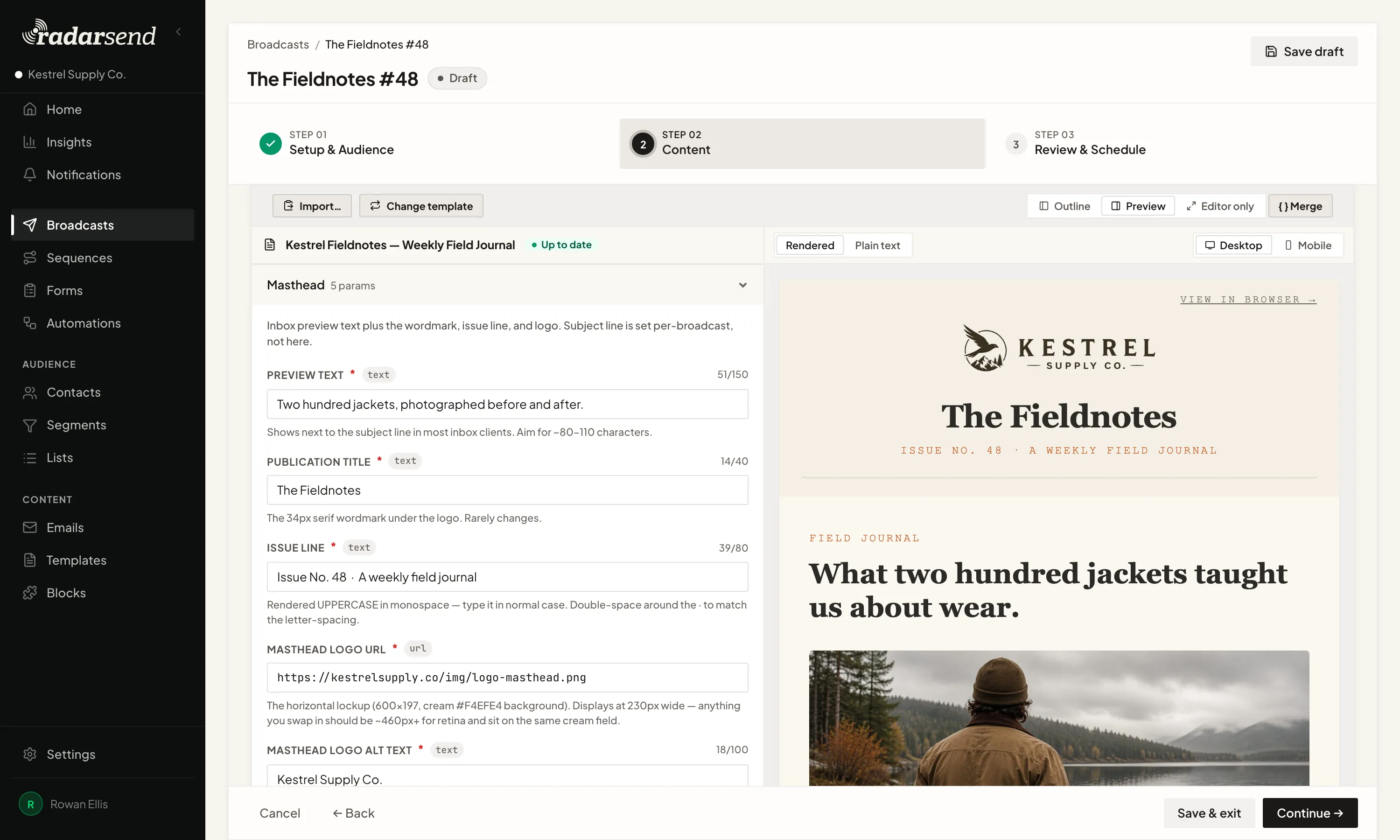
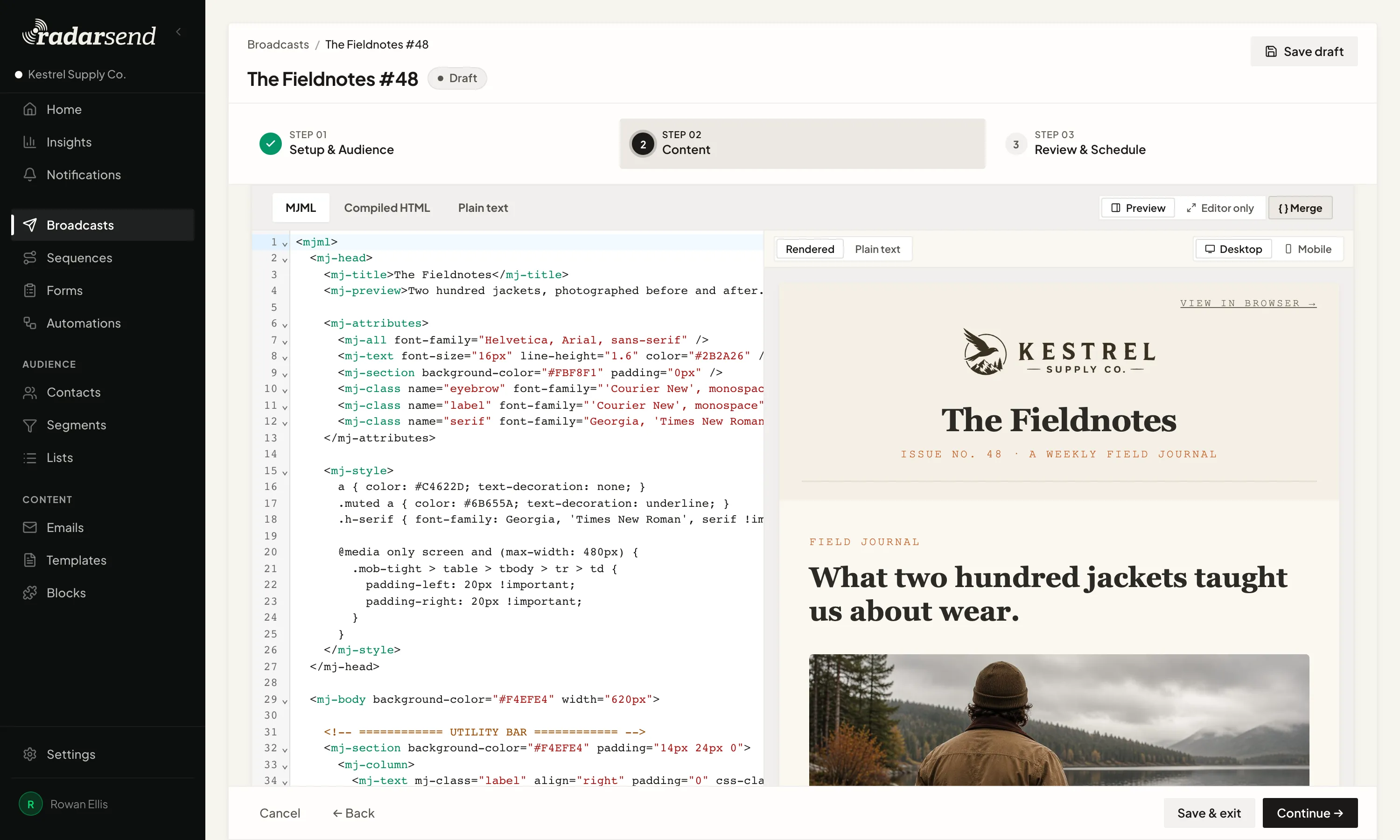
The Template workspace: the changeable pieces of the email as a labelled form with character counts and guidance, and the rendered Kestrel Fieldnotes email beside it. The MJML workspace: MJML source with line numbers and syntax highlighting on the left, the rendered email on the right. The HTML workspace: the compiled HTML source on the left, the same rendered email on the right.
Smart mail merge

Personalize more than the greeting.

Whether you work from a template, write MJML, or use HTML, the email doesn't have to say the same thing to everyone. Merge tags work like mail merge. Add one wherever contact data should appear. A greeting can use a first name. A sentence can name the contact's company. Any custom field can become part of the email.

Hi {{ first_name | default: "there" }},

RadarSend fills in the tag for each contact as the email goes out. When a first name is missing, the fallback keeps the greeting from coming out blank. The same merge tags work in the subject line too.

Liquid handles the parts that need a simple decision. Use an if/else rule to show one paragraph to customers and another to prospects, change an offer by plan, or leave out a section that doesn't apply.

Written once
Filled from each contact when the email is sent
Email bodymerge tag + Liquid
  1. Hi {{ first_name | default: "there" }},
  2. {% if plan == "pro" %}
  3. Here's what's new for Pro customers.
  4. {% else %}
  5. See what you can do with Pro.
  6. {% endif %}
Tomaya.chen@example.com
first_nameMayaplanpro

Hi Maya,
Here's what's new for Pro customers.

Toj.okafor@example.net
first_nameemptyplanstarter

Hi there,
See what you can do with Pro.

Templates

Design in MJML. Define what changes in Schema.

Write the template in MJML and mark what changes. RadarSend detects its fields, repeating sections, and slots, then flags anything missing from Schema. Add the detected parts with one click.

In Schema, define what each part accepts: text, an image, a link, a yes-or-no choice, or something else. Give it a useful label, instructions, a default, or a limit. Those definitions tell your team exactly what to fill in.

Use a repeating section for content such as newsletter articles. Define the article once, then add as many as the issue needs. Use a slot for a content block, a mini template that drops into the larger design.
app.sonarsend.com/t/kestrel-supply/templates/kestrel-fieldnotes/schema
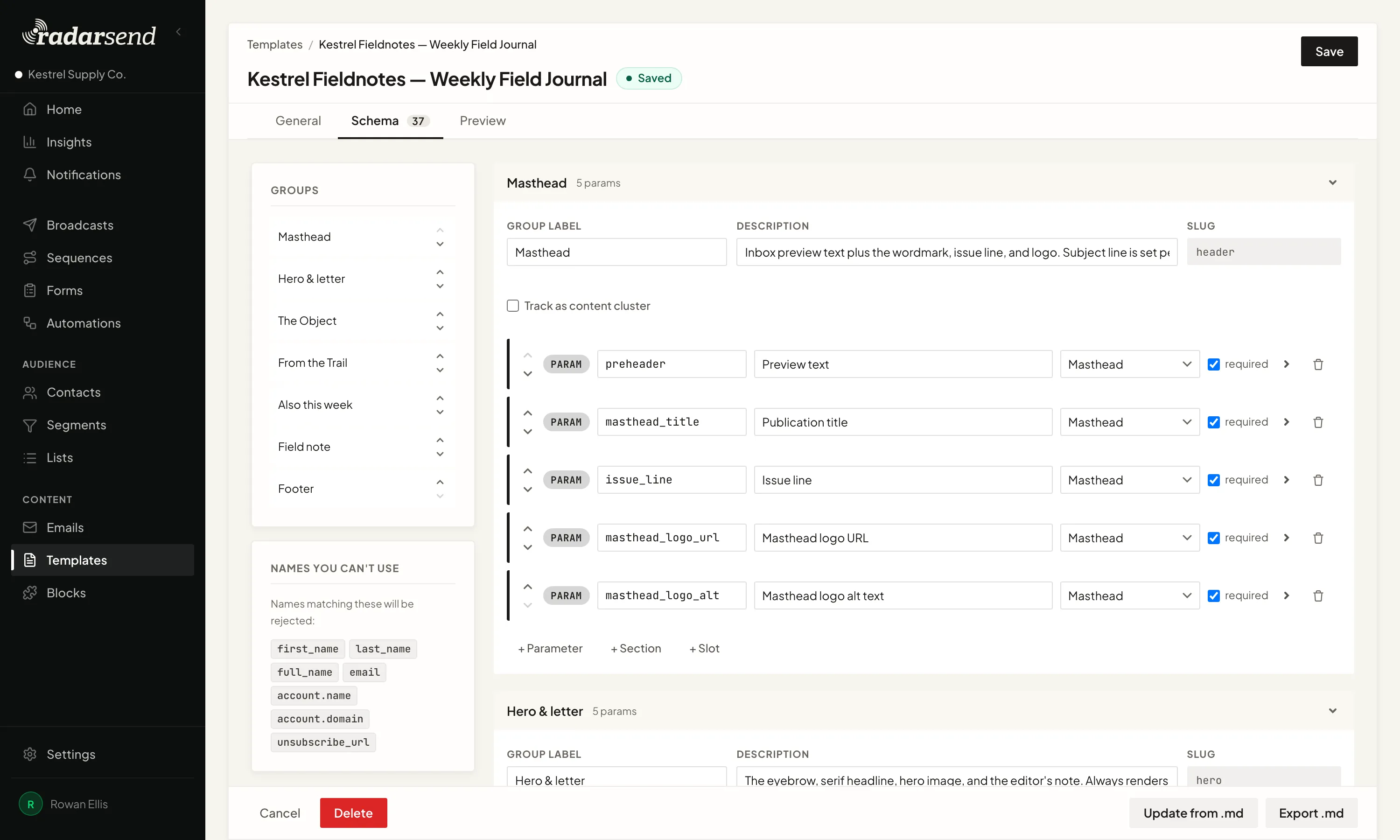
The Schema tab of the Kestrel Fieldnotes template: its groups listed on the left, and the Masthead group's parameters on the right, each with a name, a label, and whether it's required, with controls to add a parameter, a section, or a slot.
The parts in the MJML become the fields, repeating sections, and content choices your team fills in
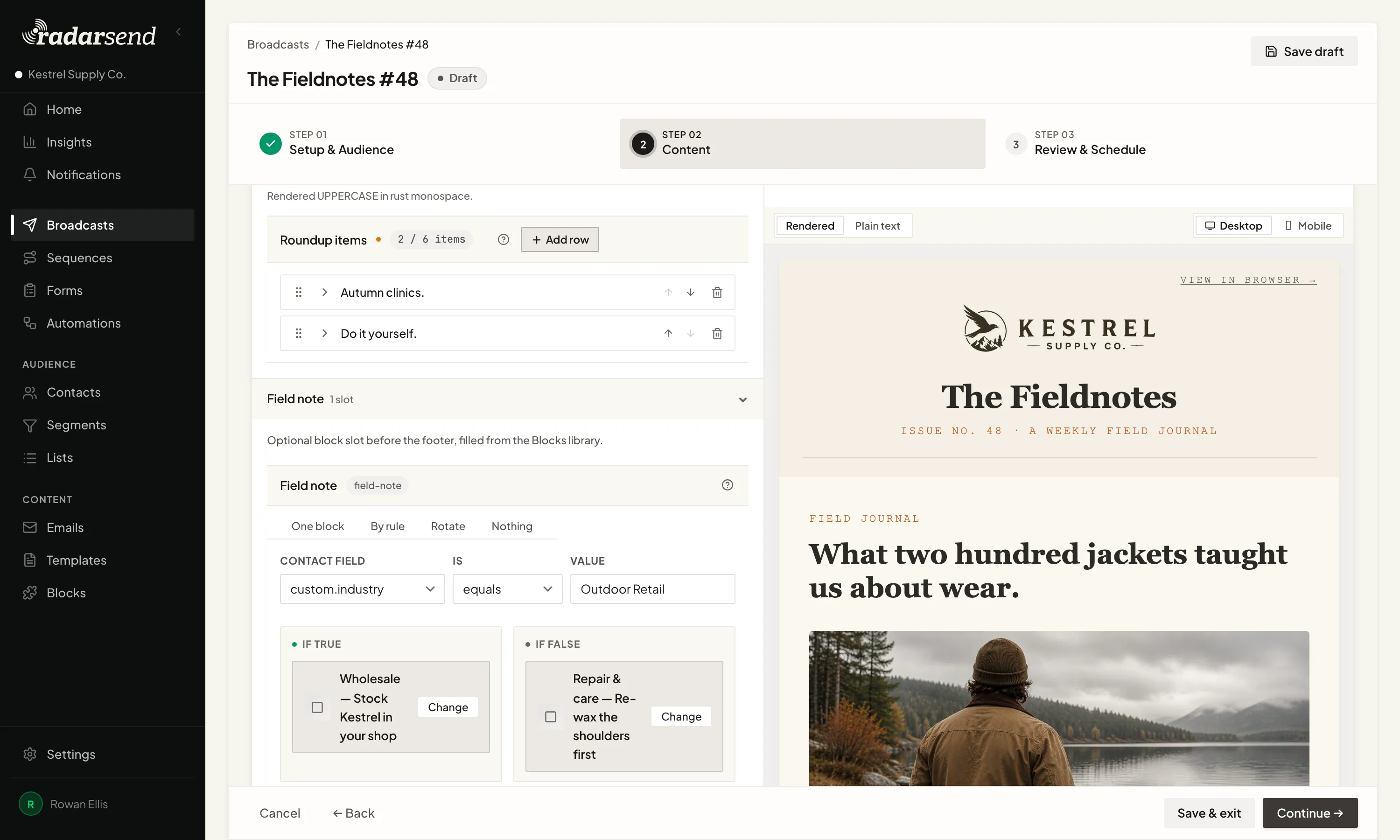
app.sonarsend.com/t/kestrel-supply/broadcasts/fieldnotes-48/content
A content block slot in a broadcast set to choose by rule: when the contact's industry is Outdoor Retail, one block fills the slot, and otherwise a different block does, with the rendered email beside it.
Reusable content

Build a block once. Use it across templates.

Build a promotion, event notice, product card, or signature as a content block. It gets its own MJML and fill-in fields, then drops into any compatible template without being copied from an old email.

Use the same block every time, choose from a group, change it based on a contact field, or leave the slot empty. Merge tags and Liquid rules work inside blocks too.

Reuse the design without making every email identical.

AI-assisted drafts

Let an assistant fill in the fields.

A RadarSend Template explains what belongs in each field, how long it can be, and which content blocks are allowed. That gives an AI assistant a clear job.

Give it your posts, product notes, or source material. It fills in the template, checks the result, and fixes anything that doesn't fit. What lands in RadarSend is a finished draft in your design, ready for review.

The assistant writes the changing content. The template keeps control of the layout.

Your assistant · connected to RadarSendClaudeChatGPTGemini
Put together this week's Fieldnotes from the three posts I published, and include the 20% trail-jacket promo.
AI
I'll use your Fieldnotes weekly template. It wants a headline, a short intro, three stories with links, a hero image, and an optional promo block.
AI
One thing: my first headline was too long for the template, so I shortened it to "Eleven days on the coast path".
AI
The draft is in your account, in your design, waiting for review.
Draft created in RadarSend
The Fieldnotes #48
3 stories · hero image · promo block · ready to approve

Send it once or add it to a sequence.

Use the same email in a one-time broadcast or a longer sequence. Personalize it with contact data. Let an assistant prepare the next draft without giving up control of the design.

Your design stays yours. The next email gets easier.

See pricing Take a tour