Know more than
an email address.
Bring in the contact data your email program needs. Keep stages, subscriptions, scores, and recent activity with each person. Then build audiences that update as people act.
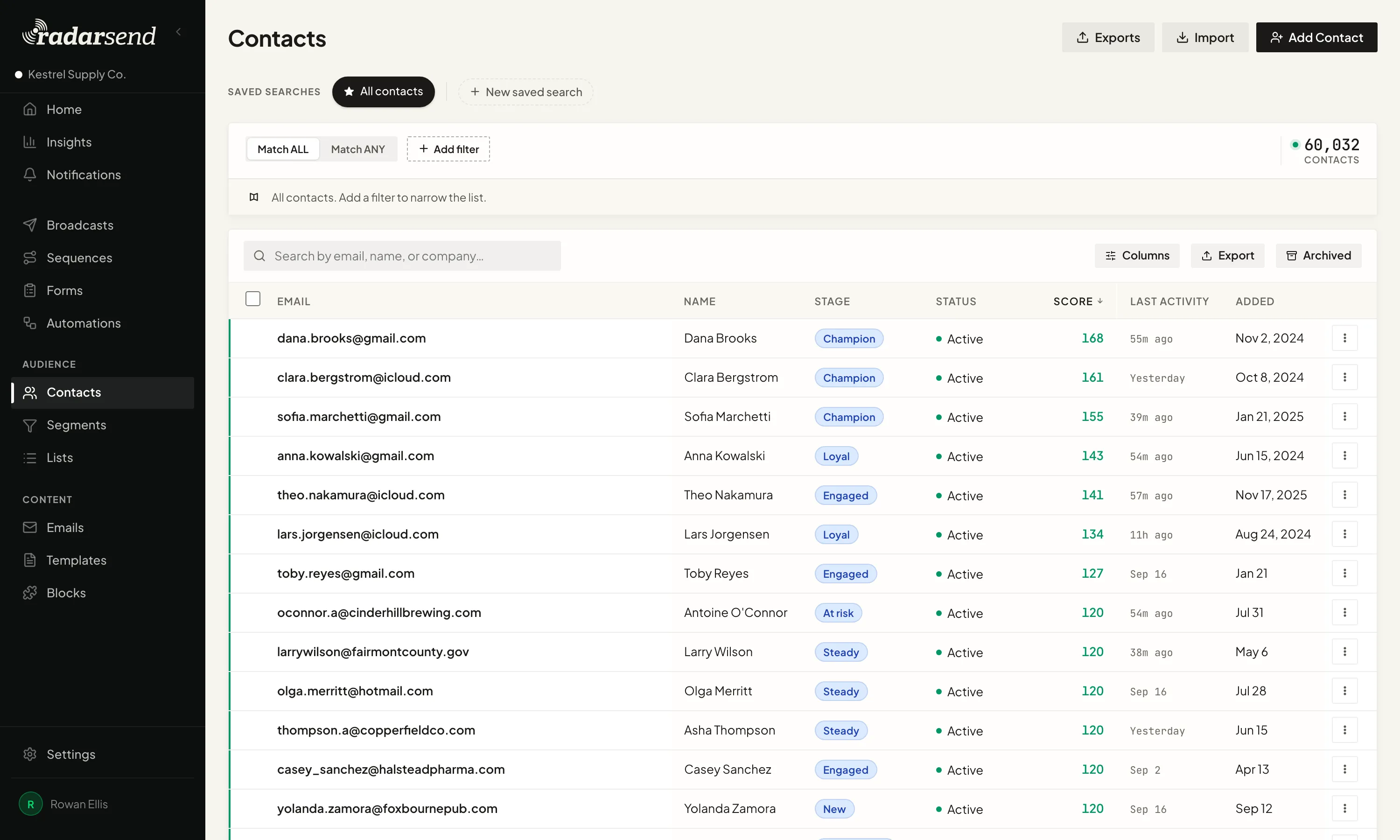
Your CRM and other business systems can stay where they are. RadarSend keeps the details it needs to decide who should get which email.
Bring your contacts over without surprises.
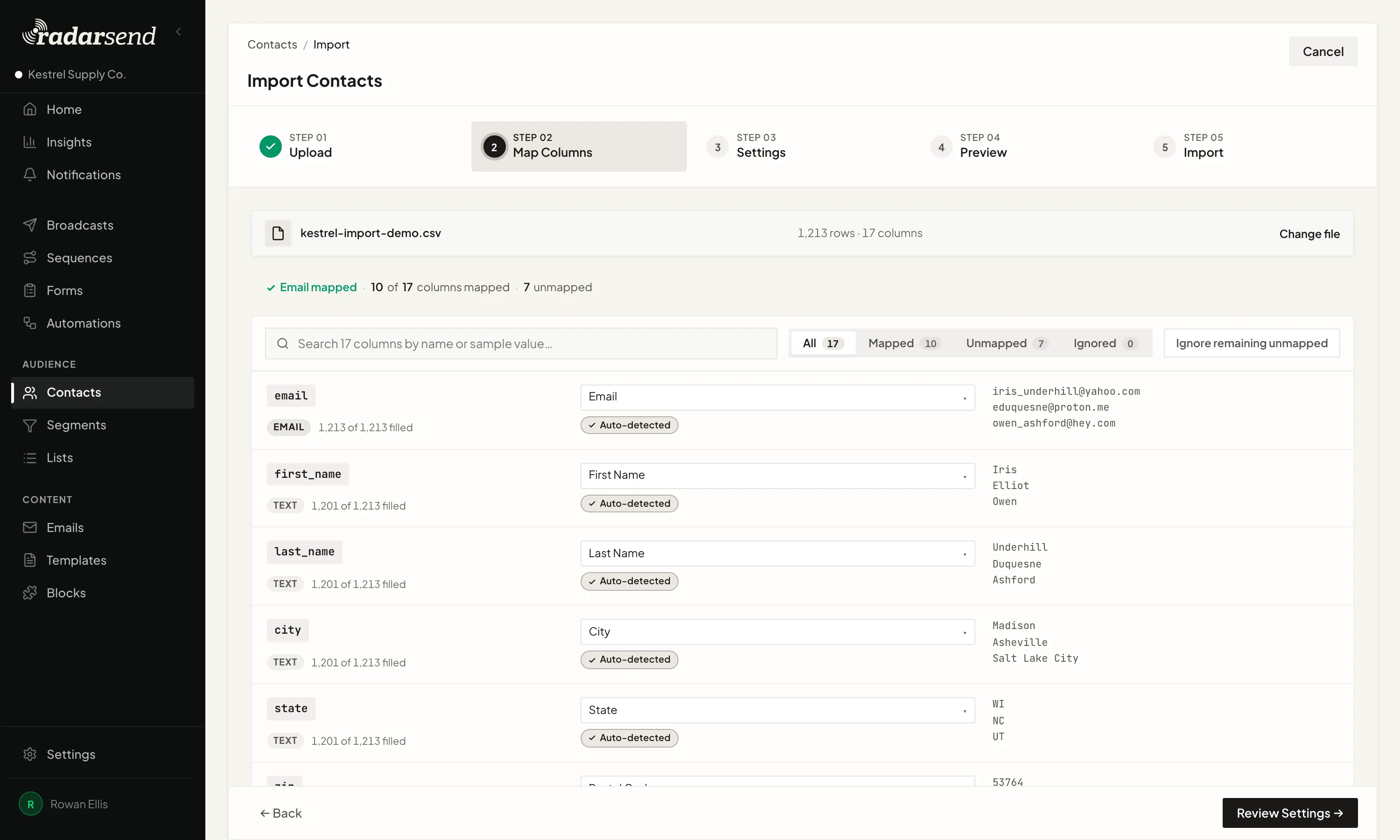
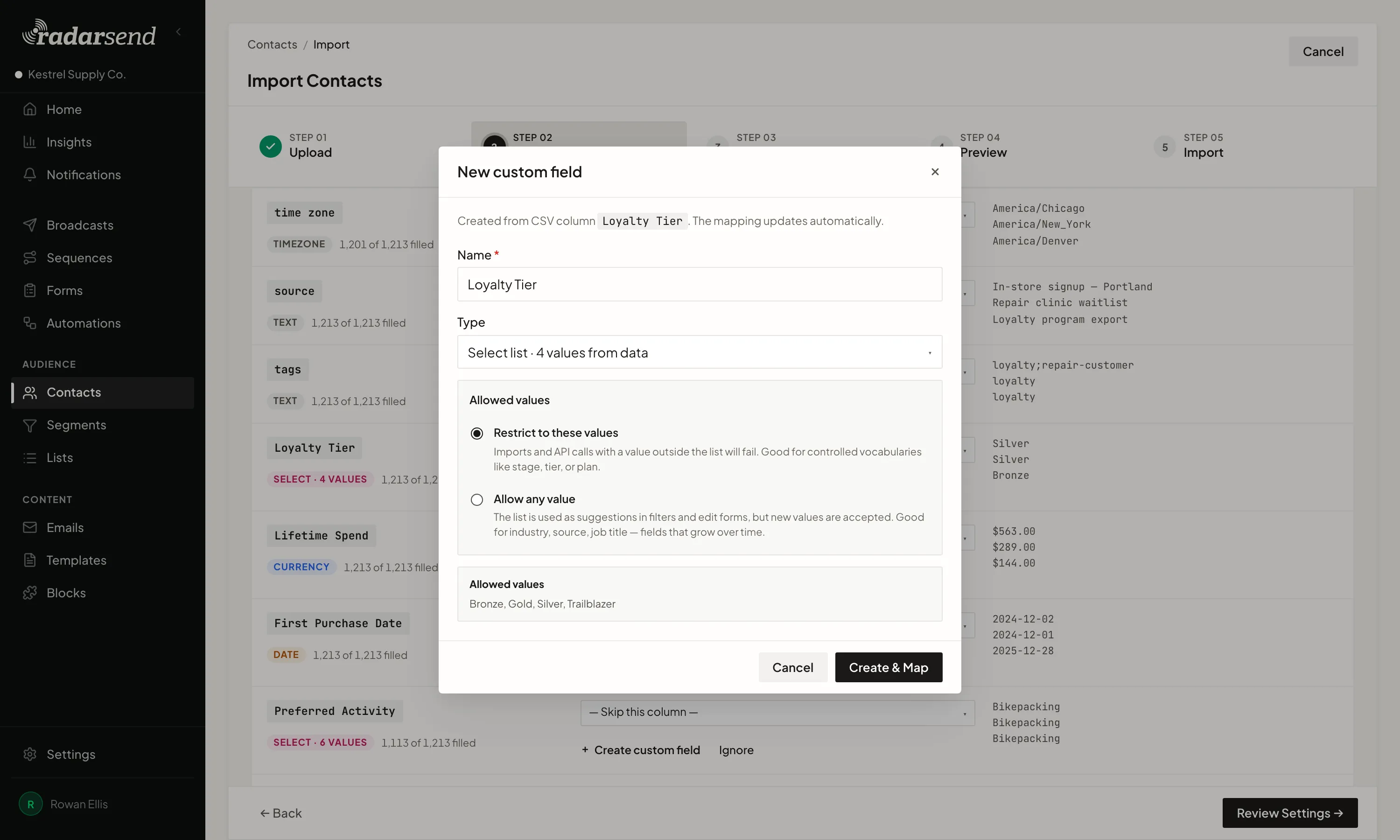
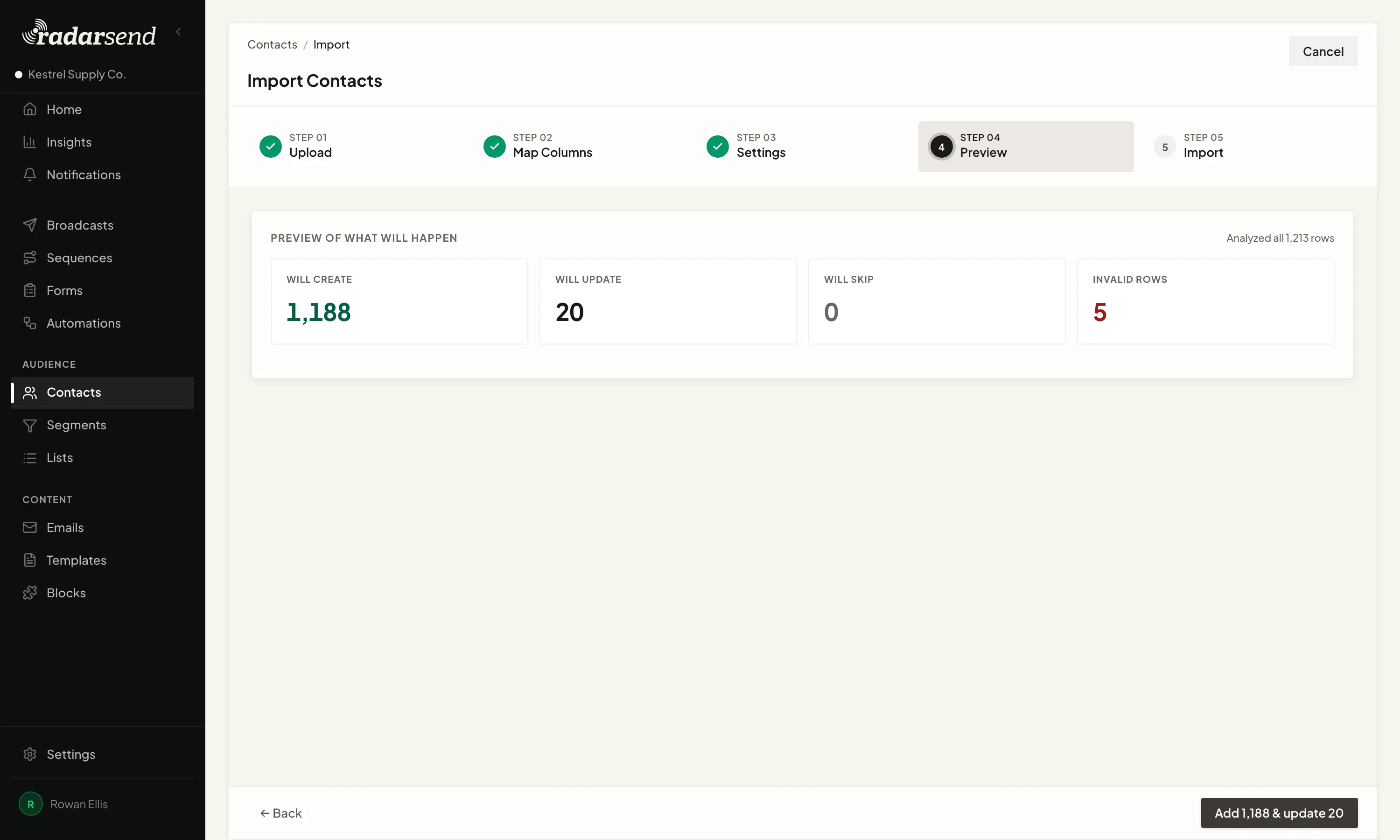
Upload a CSV and RadarSend suggests where each column belongs. Map standard details, your own fields, stages, subscriptions, and sending status. If the file contains a field you haven't made yet, create it while you map. Give it a type, like a date, a number, or a list of allowed values, so it works in segments, merge tags, and conditional content.
When an email address already exists, choose what should happen. Skip it or update it. Let the incoming value replace what's there, fill only blank fields, or keep the existing value.
Before anything changes, RadarSend shows what the import will create, update, skip, or reject. Review sample changes and fix invalid values before you confirm. The same flow can add a suppression list without erasing the contact details you still need.
Contacts can also arrive through RadarSend forms, the API, or the tools you connect. An import can start an automation or enroll the new contacts in a sequence when that's part of the job.
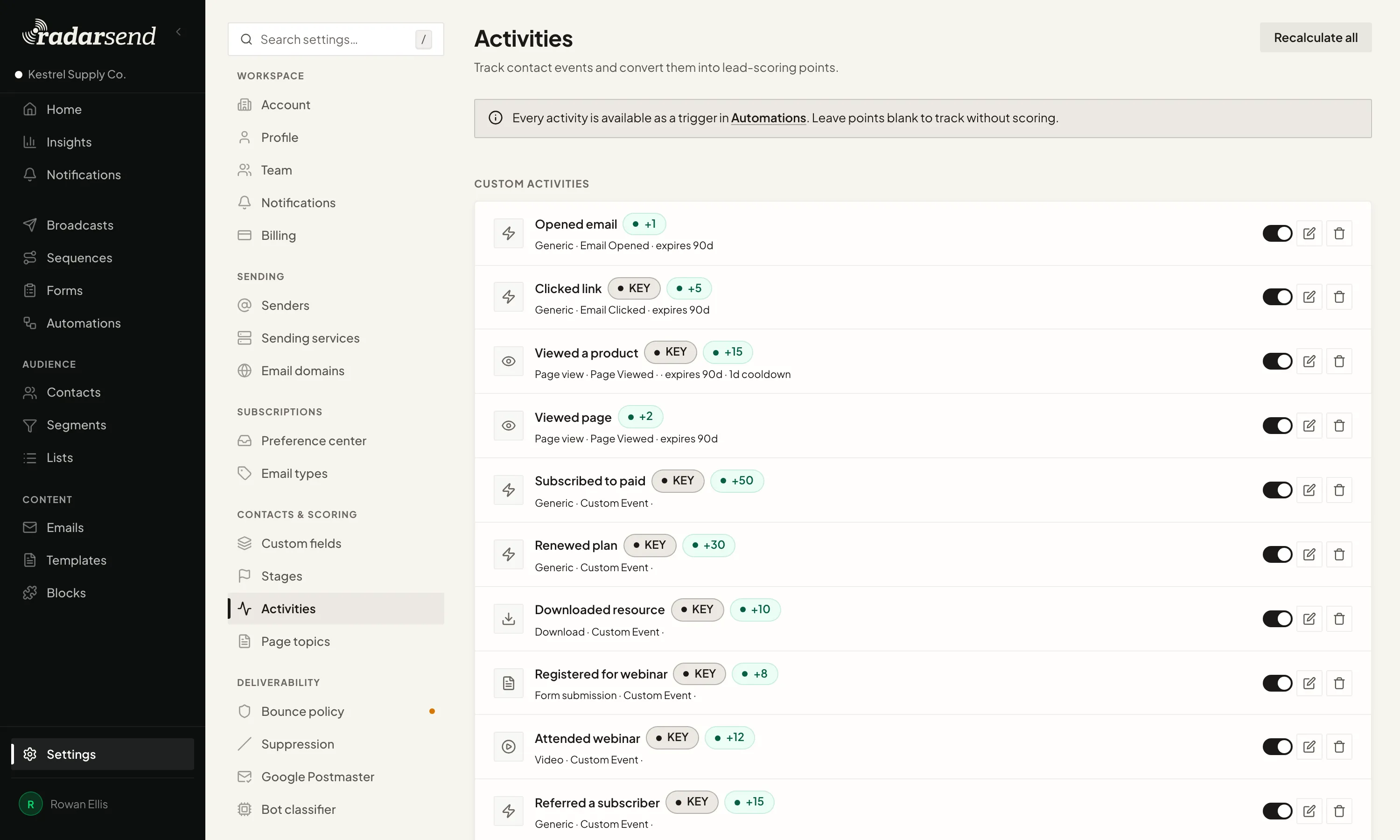
Track the activities that matter to you.
Define the specific activities you want to track, like a demo request, a webinar signup, a download, or a renewal. Send them from your own systems through the API. Record them on your site with the tracking snippet. On WordPress, the RadarSend plugin brings in signups and logins, and WooCommerce purchases, renewals, and cancellations too.
Each one lands on the contact's timeline. Keep it for the record, or give it points toward a prospect or customer score, with points that expire so old interest doesn't look new forever. Any activity can also start an automation.
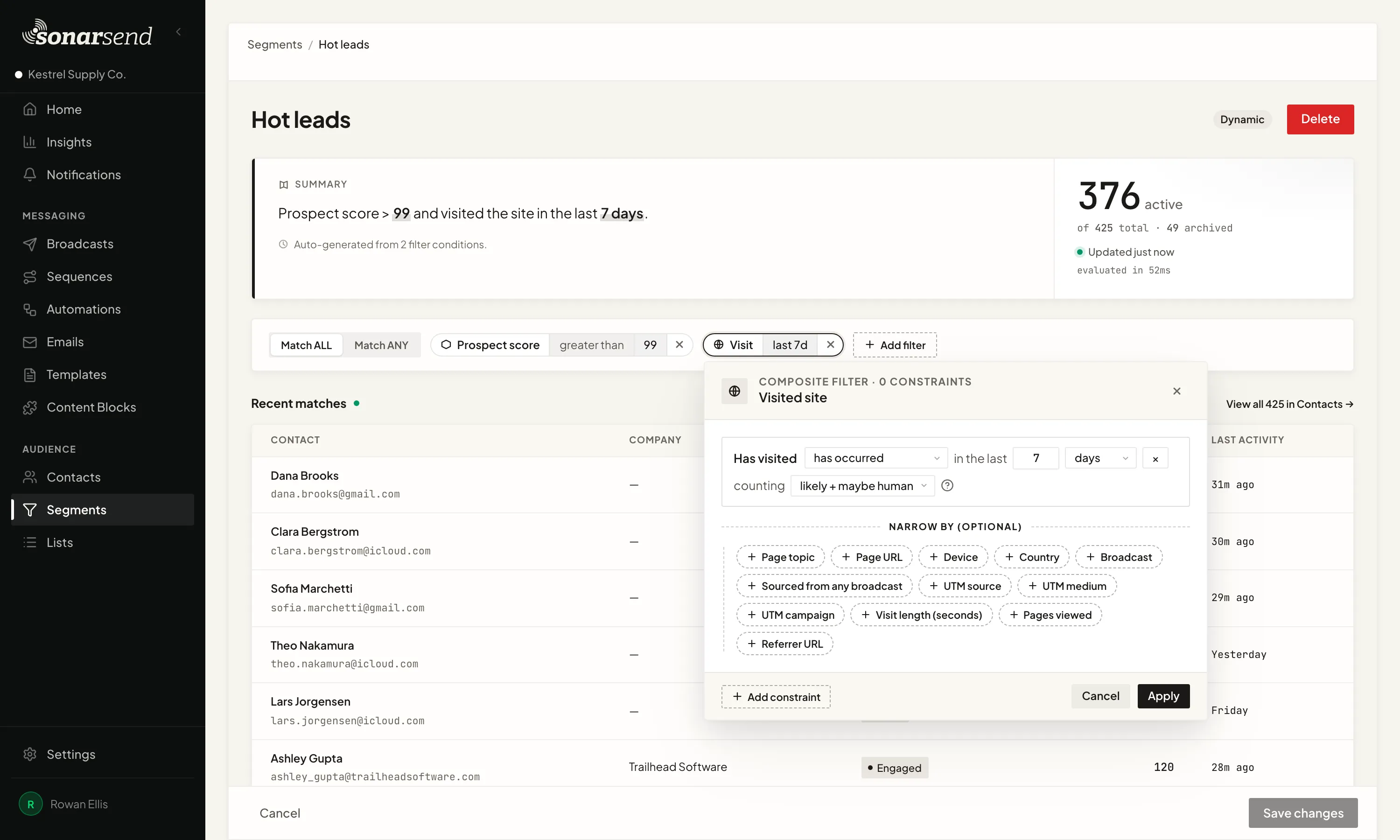
Build segments that stay current.
Use any contact detail, subscription, stage, score, email activity, website visit, or custom activity as a rule. Combine the rules you need, read the plain-English summary, and see how many contacts match before you save.
For example: prospect score above 99 and visited the site in the last seven days. Narrow the visit by page, source, device, country, time on site, or whether it followed a broadcast.
Segments update as contacts act. There's no list to export and rebuild before each send. Known bot and scanner activity is filtered before it can move someone into an audience.