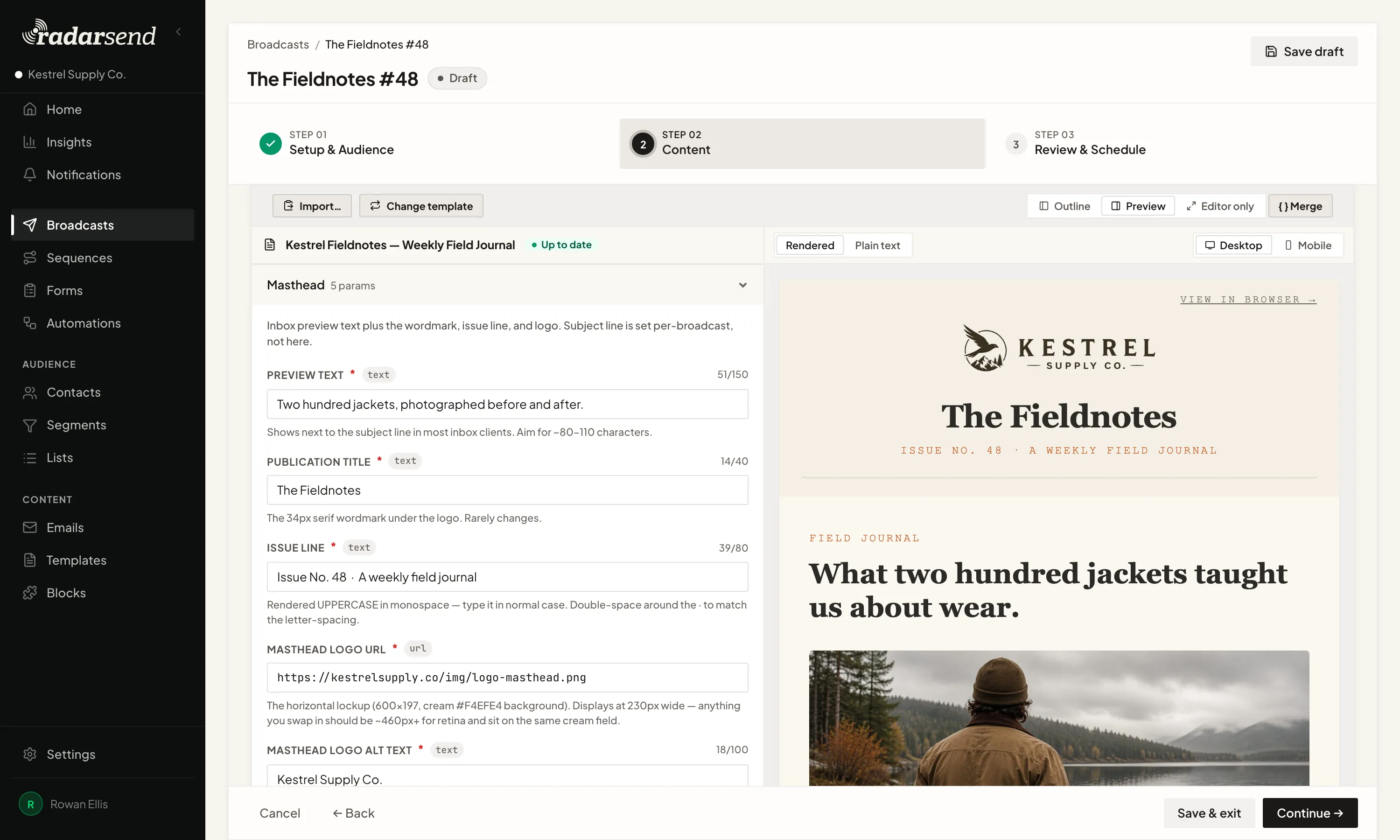
Content
Write it your way.
Use a RadarSend Template, work directly in MJML, or bring your own HTML. Preview the finished email on desktop and mobile before it goes out.
Choose exactly who gets it. Build the email the way you want. Send it now, schedule it, or spread it out.
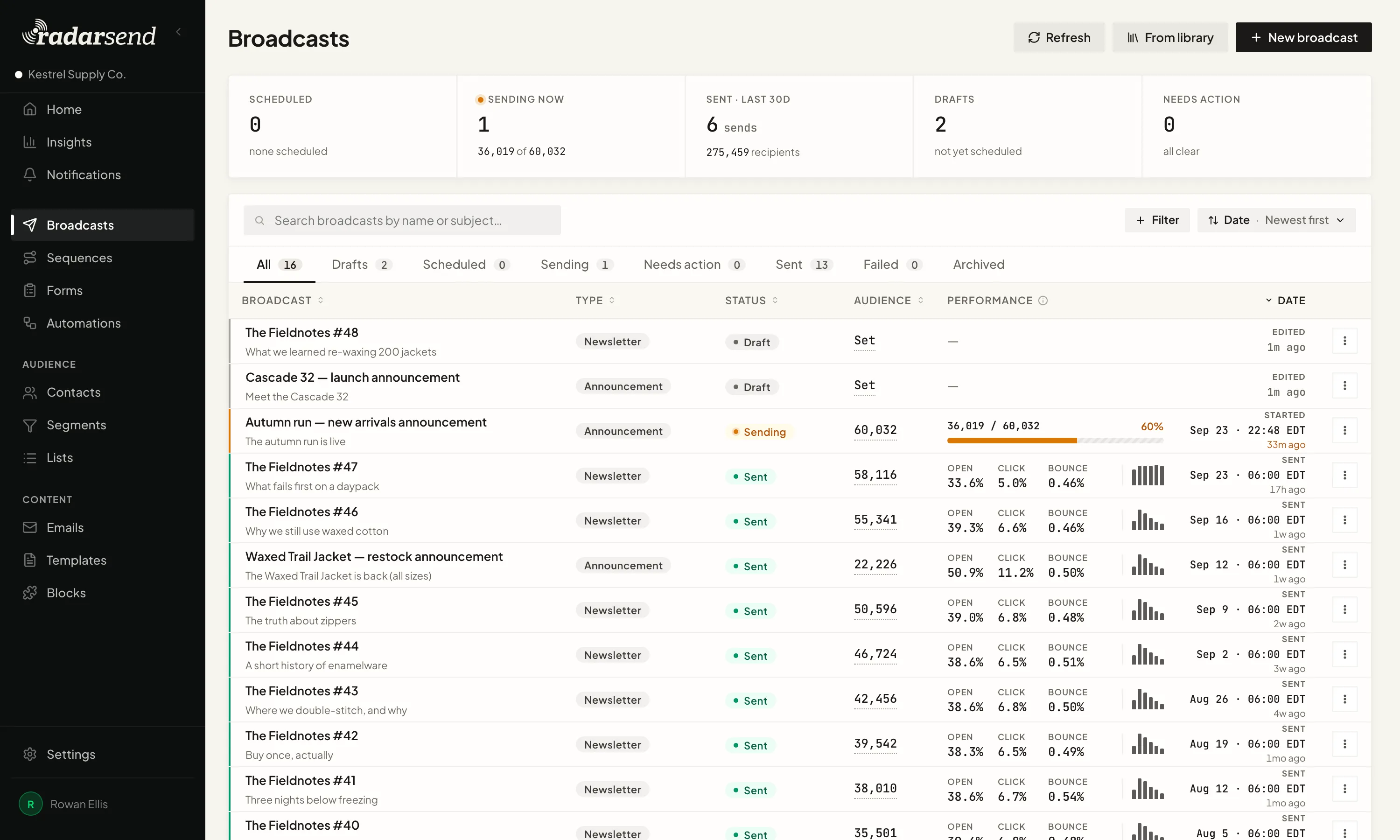
A broadcast has three jobs. RadarSend keeps each one clear.
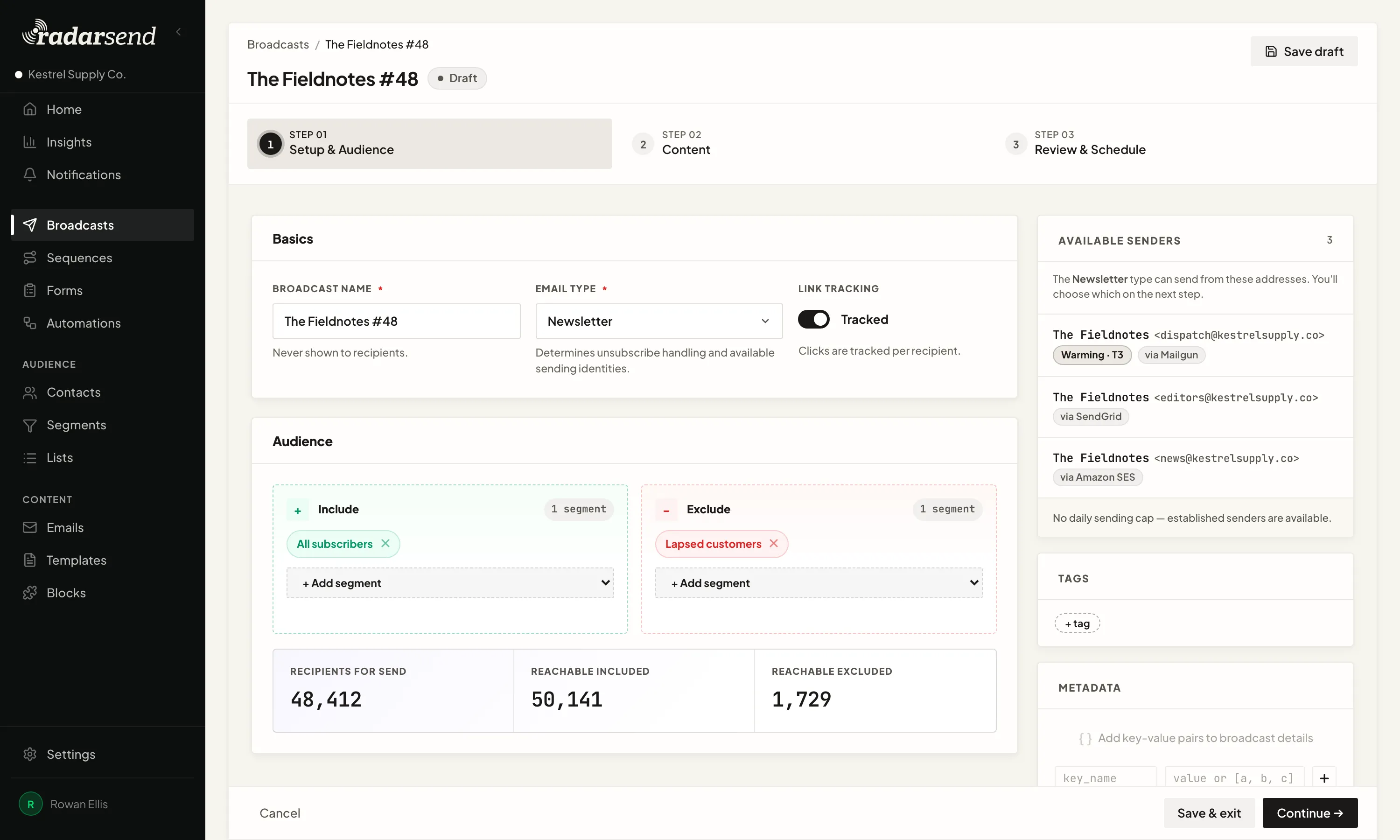
Include the segments and lists you want. Exclude the ones you don't. RadarSend shows you how many reachable contacts will receive the email before you send it.
No exporting lists. No stitching audiences together somewhere else. Choose the people, check the count, and move on.
Use a RadarSend Template, work directly in MJML, or bring your own HTML. Preview the finished email on desktop and mobile before it goes out.
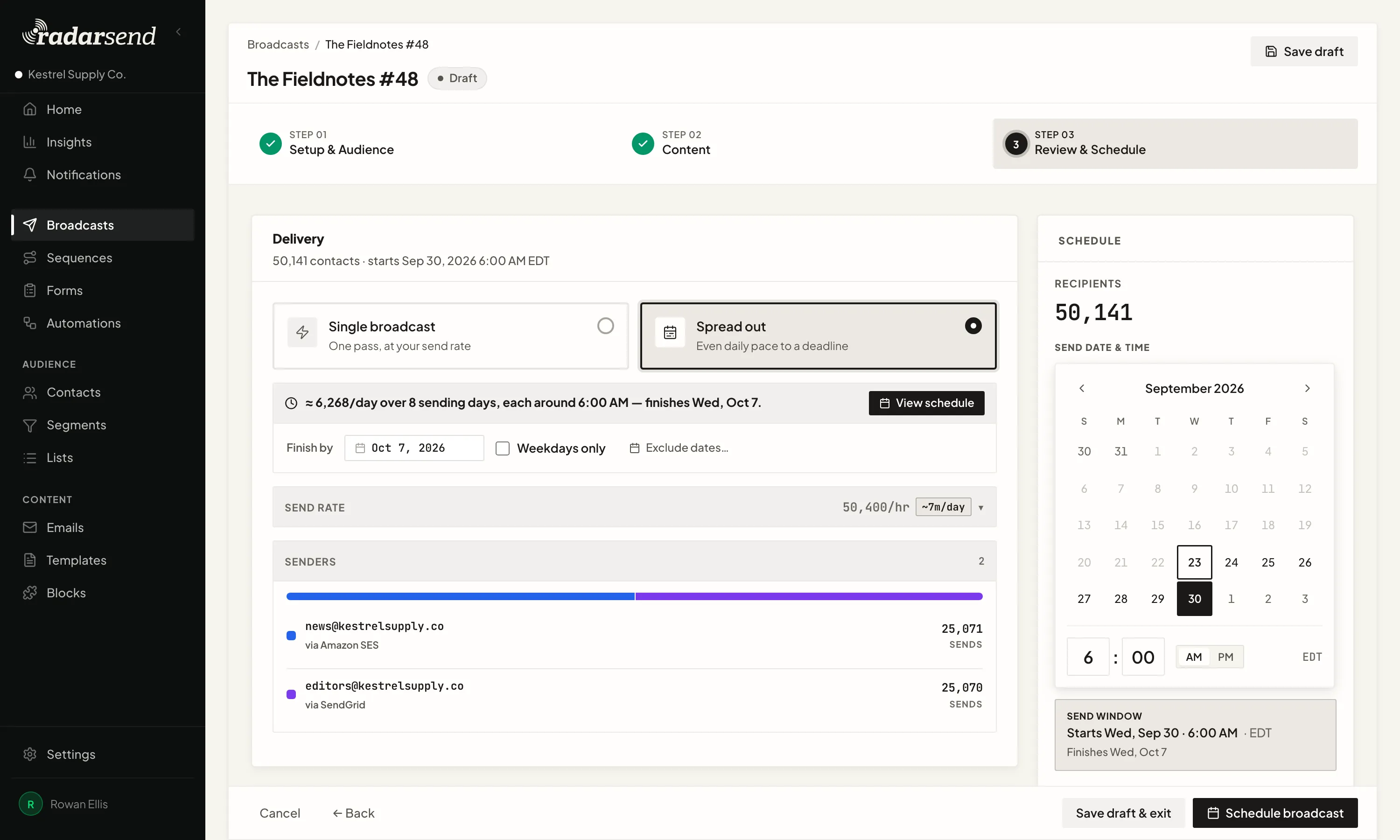
Send the broadcast now. Schedule it for later. Or spread a large send out so the whole list doesn't land at once.
Send from your own addresses through the providers you already use. A large broadcast can go out through more than one, within the warming limits you've set.
Your sending provider. Your domains. Your schedule.
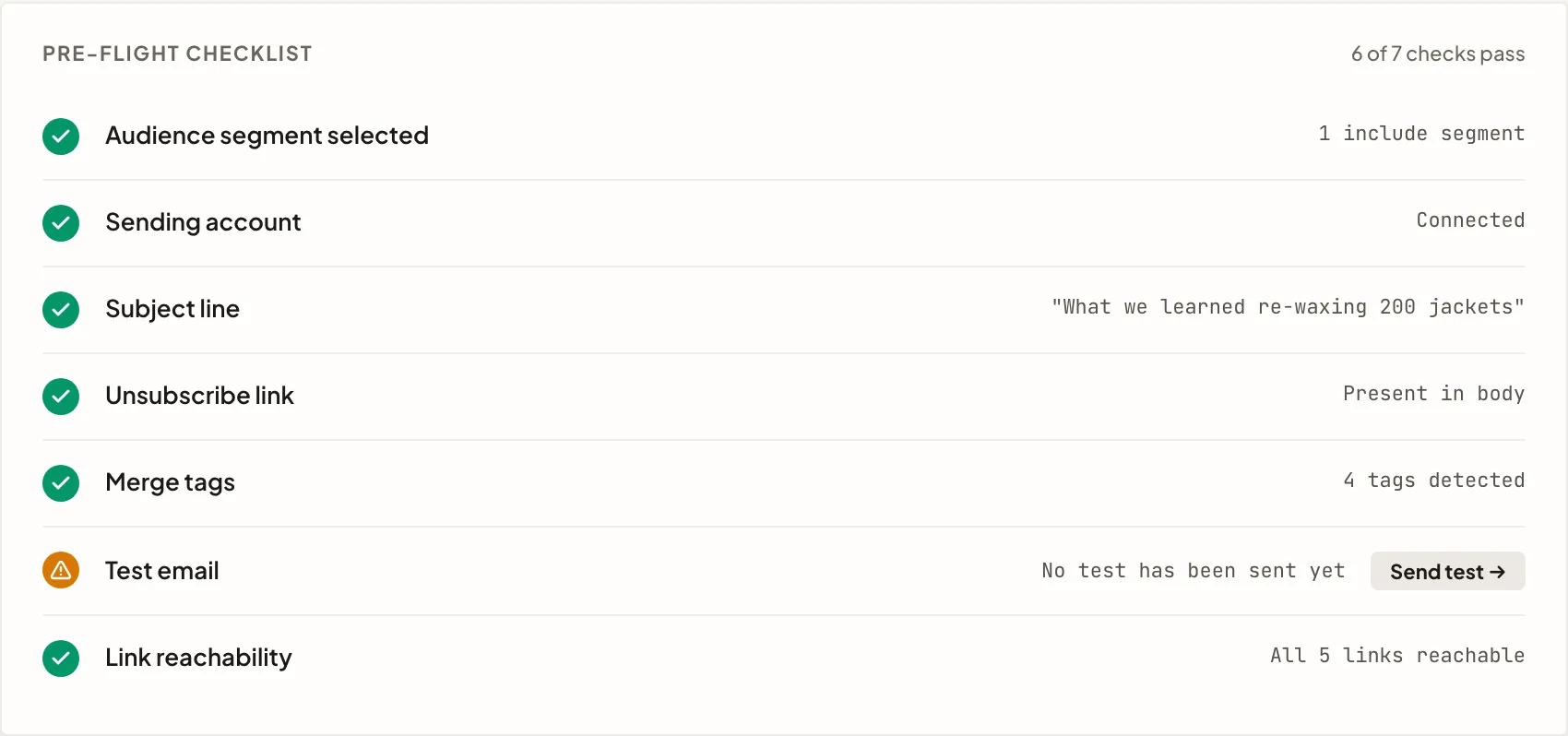
Preview the rendered and plain-text versions on desktop and mobile. Send a real test through the sending identity you chose.
Before scheduling, RadarSend checks the unsubscribe link, tests personalized fields against real contacts, and follows the links in the email. If something is broken, it tells you which part needs attention.
When it's done, see what people did, not just what inbox software did. Start with the numbers you expect: delivered, opened, clicked, and bounced.
Then look closer. See which contacts opened or clicked, which pages they visited, how long they stayed, and when they came back. Export the people you want to work with or use what they did to build your next segment.
The report doesn't stop at the click.
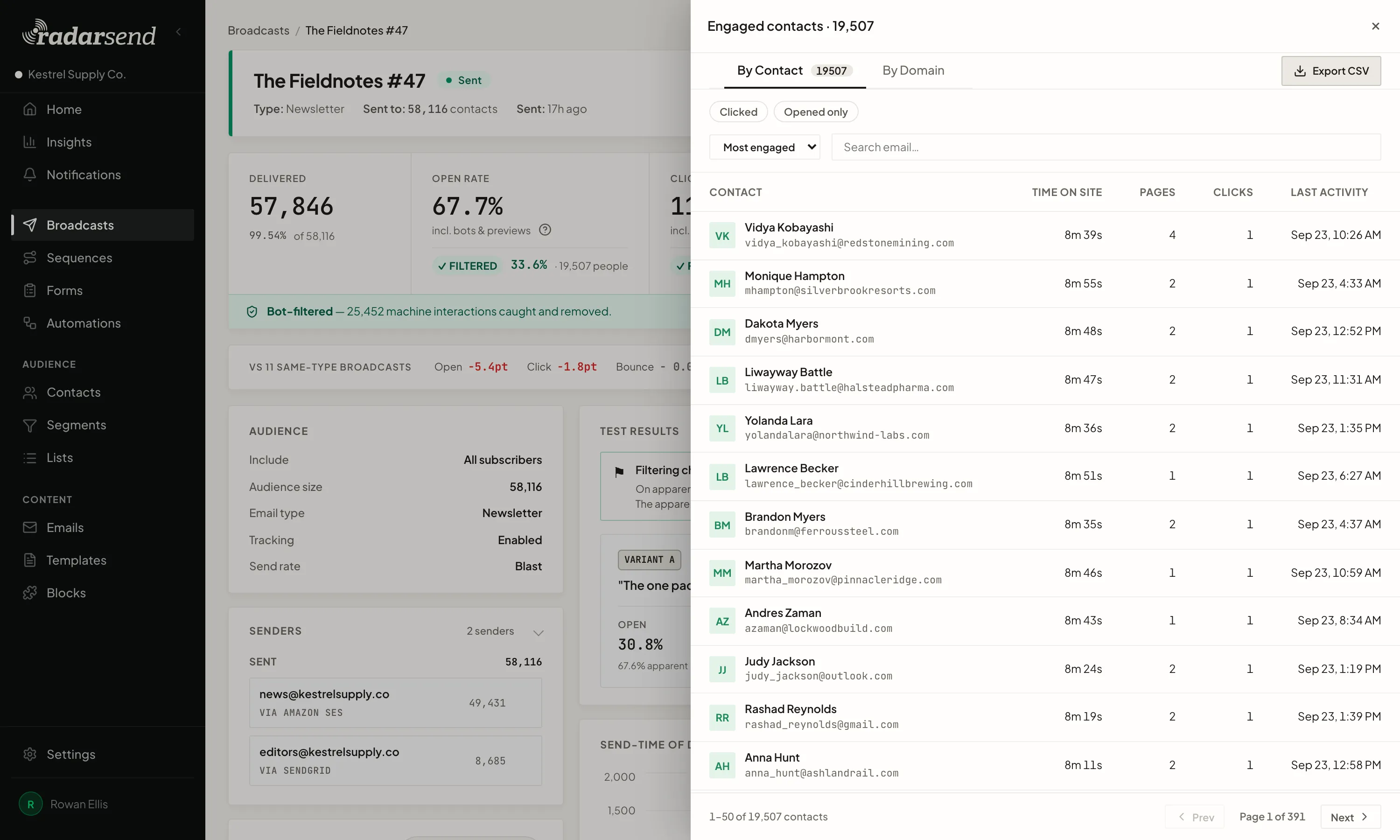
What happens next becomes part of the contact record.
Use those clicks and visits to build a segment, change a score, or start a follow-up sequence. The results don't have to sit in a campaign report. They can change what each person receives next.